
Create your account
One account to order, one for your restaurant, and one to deliver. Each takes a minute.
How it works
Tumbite has three front doors, one for each way to use it. People who order food sign up in the Tumbite app. Restaurants create their account in the dashboard, from a computer. Drivers sign up in the Tumbite Driver app.
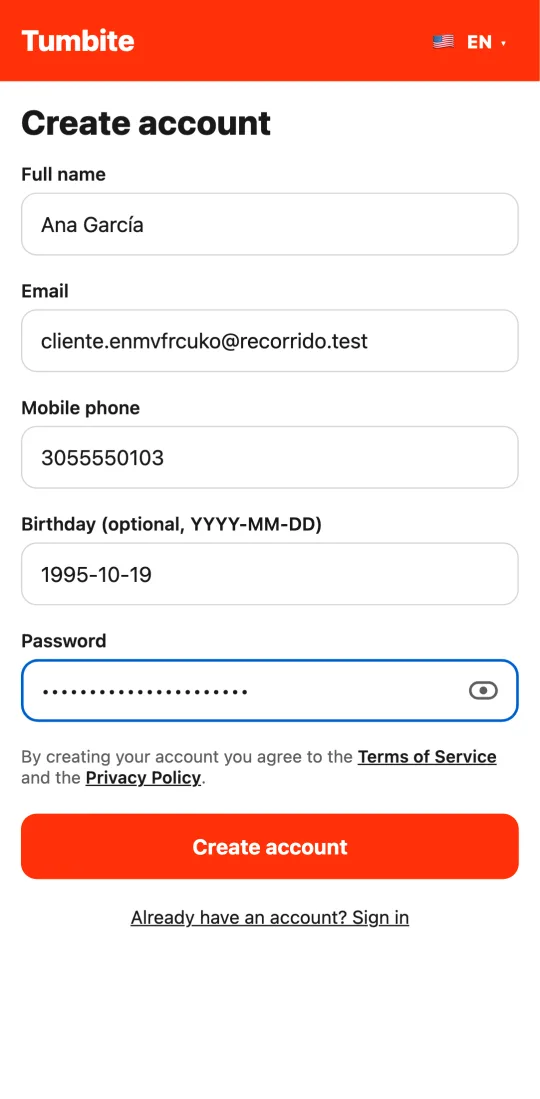
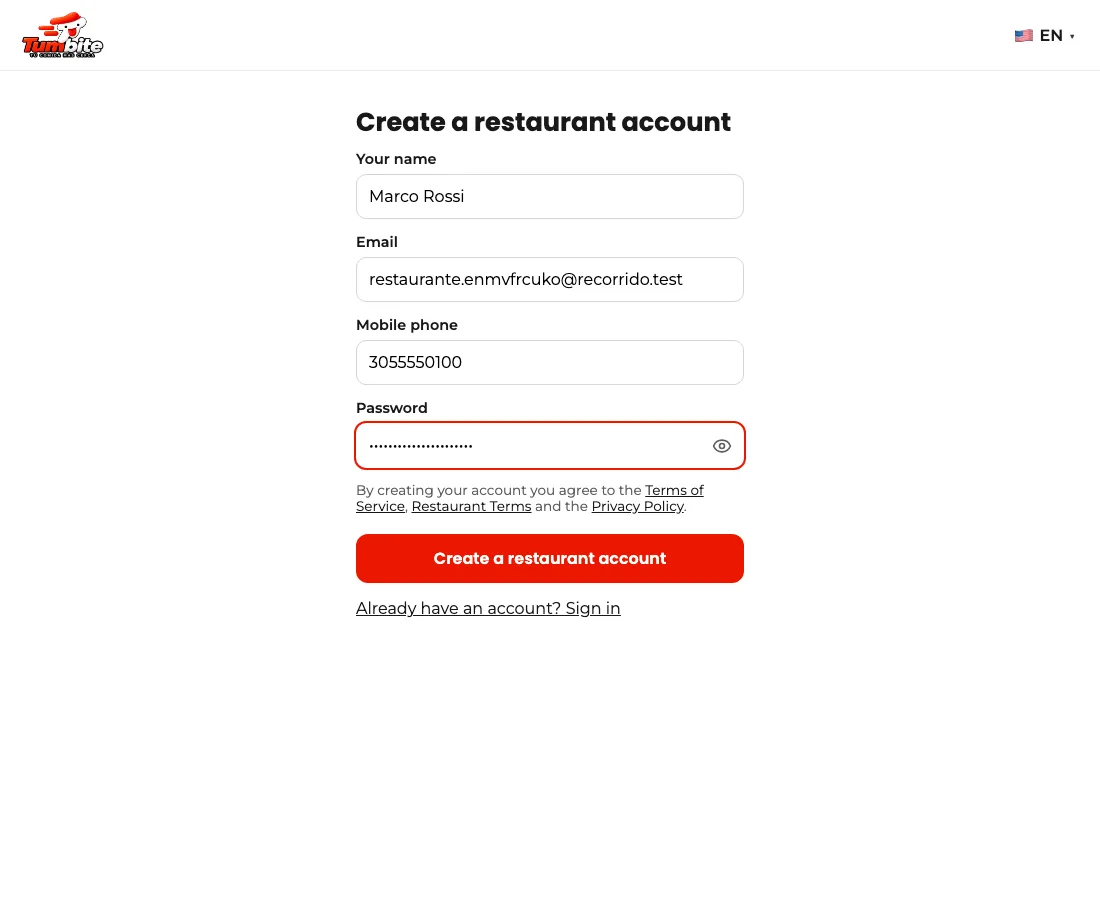
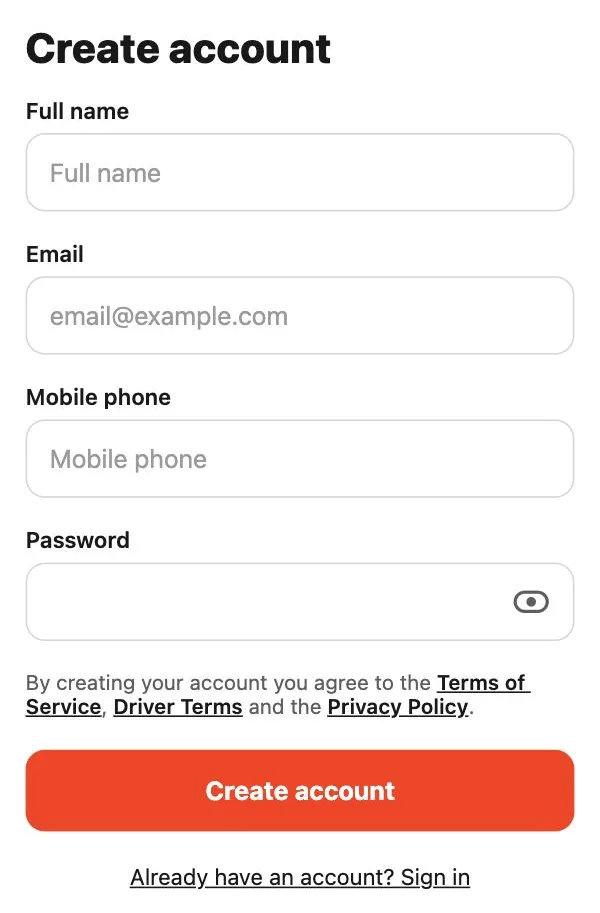
All three ask for the same things: your name, your email, your phone, and a password, which you can check with the eye icon before saving. If the screen closes halfway, everything you typed is still there when you come back.
Steps
- To order: open the Tumbite app, tap “New here? Create your account,” fill in your details, and tap “Create account.” If you add your birthday, your favorite restaurants can send you a gift.
- For your restaurant: go to tumbite.com, tap “Dashboard,” then “Restaurant not on Tumbite yet? Create your account,” and fill in your details.
- To deliver: open the Tumbite Driver app, tap “New here? Create your account,” and fill in your details.
- We email you a link to confirm it’s yours. Meanwhile, you can already use Tumbite.
This guide answers
- How do I sign up for Tumbite?
- How do I create a restaurant account?
- How do I create a driver account?