
Item options: size, extras, no onions
Each item can have option groups: the customer chooses when ordering and the price adds up automatically.
How it works
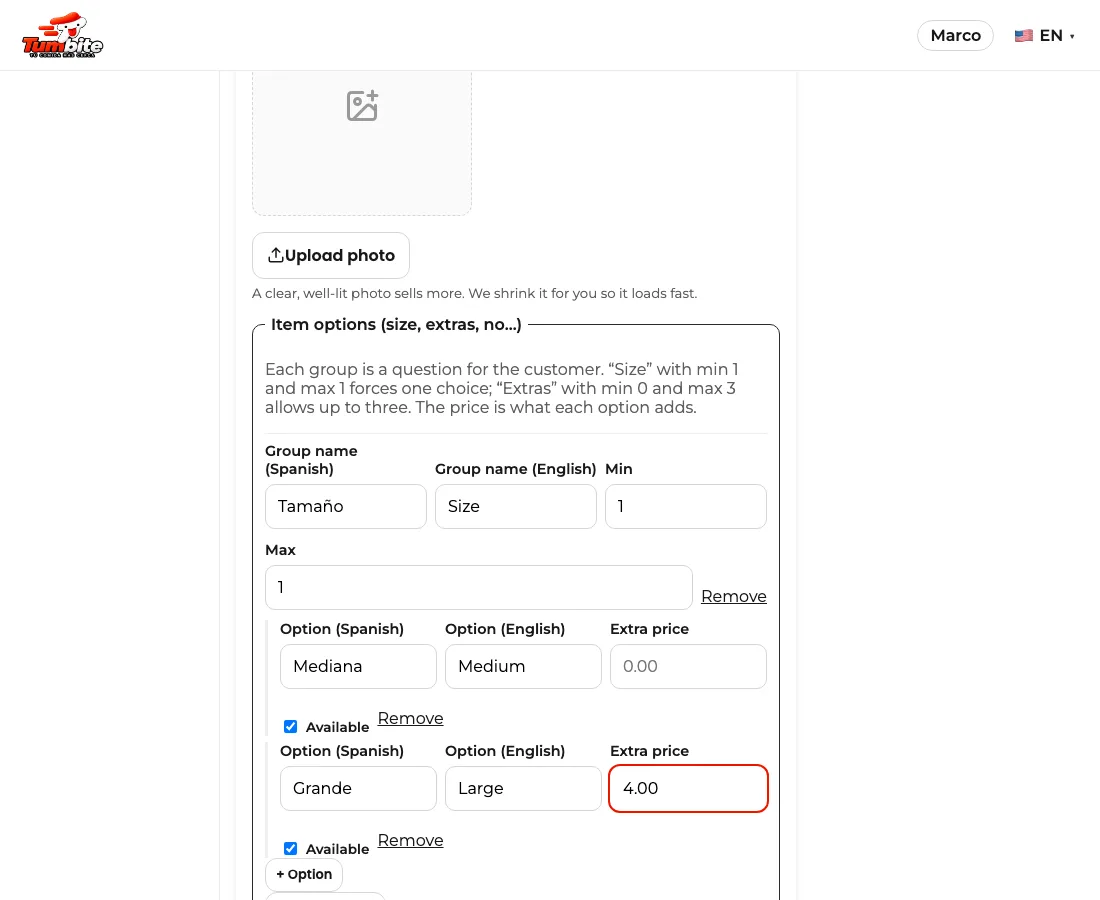
When creating or editing an item, “Item options” is at the bottom. Each group is a question: “Size,” “Extras,” “No…”.
Min and max say how many the customer can choose. “Size” with min 1 and max 1 forces one choice. “Extras” with min 0 and max 3 allows up to three or none.
Each option has a Spanish and English name and its extra price (can be 0). An option can be marked sold out without deleting it.
On the order, you and the driver see what was chosen next to the item: “Margherita pizza (Large, Extra cheese).”
Steps
- Menu → edit the item → “+ Option group.”
- Group name, min and max, and its options with prices.
- Save the item. Customers see the options when adding it to the cart.
This guide answers
- How do I add sizes or extras to an item?
- How do I force the customer to pick a size?