
Verify your restaurant
Four photos from your phone: your ID, your face, and your storefront. That’s how your customers know you’re real.
How it works
On Tumbite every restaurant is a real business, with an identified owner and a place that exists. That verification protects your customers, protects your brand from copycats, and is what makes people comfortable ordering from you for the first time.
The storefront photo is taken on site: your phone records the location and we match it with the address on your profile. Once a year we ask you to retake just that photo, to confirm you’re still at the same place.
Only the Tumbite team that reviews verifications sees the photos. They are never published or shared, and they’re deleted if you close your account.
Steps
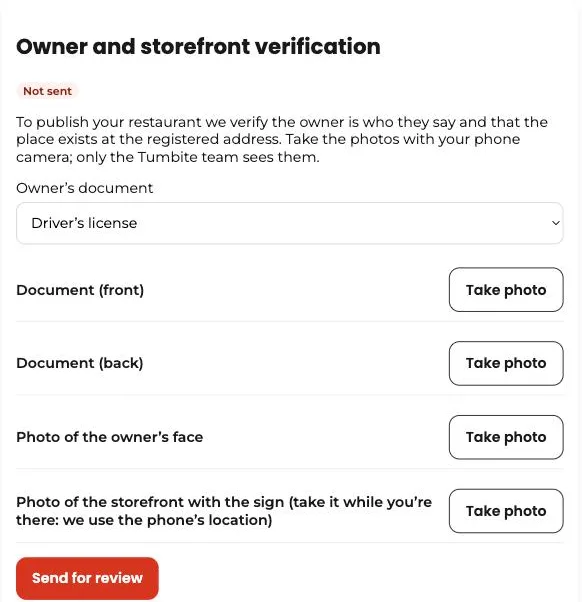
- Open your dashboard on your phone and go to “My company.” Scroll down to “Owner and storefront verification.”
- Choose the owner’s document: driver’s license, government ID, or passport.
- Tap “Take photo” on each line: the front of the document, the back (not needed for a passport), and your face, straight on and in good light.
- Go to the front of your restaurant and take the photo with the sign in view. Your browser asks for location access: allow it.
- Tap “Send for review.” We email you as soon as it’s reviewed. If a photo isn’t clear, we tell you which one to retake.
This guide answers
- How do I verify my restaurant?
- Which photos do I need for verification?