The home screen: what’s there and what each thing does
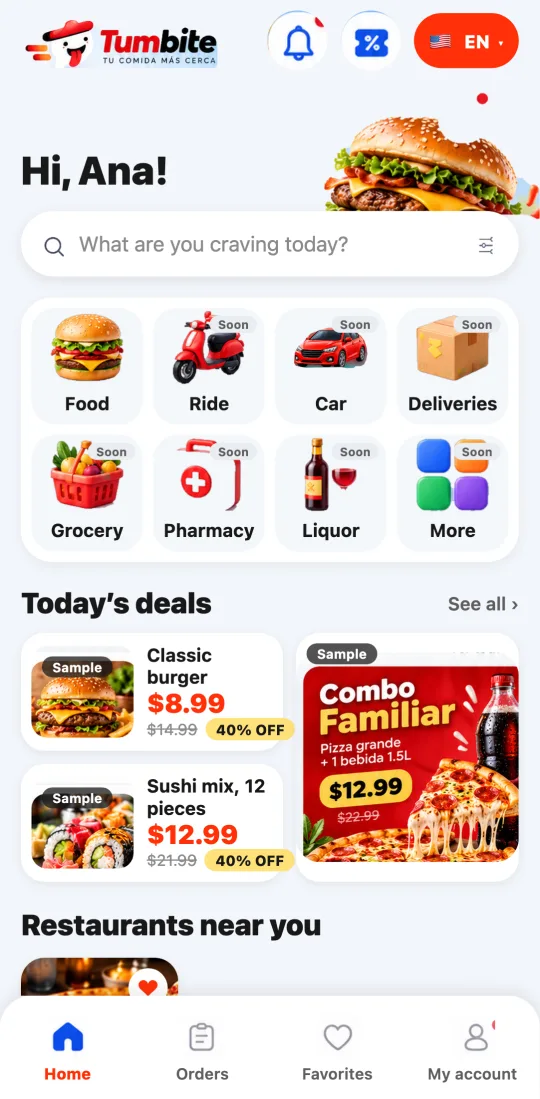
Like the big delivery apps: at the top the logo, your greeting, the notifications bell and the gifts coupon. Then the search bar, the eight services in order (Food works today), your gifts or the deals, restaurants near you and the bottom bar.
How it works
Header: the Tumbite logo, your name, the notifications bell (with a red dot when you have active orders) and the coupon, which opens your gifts. The language selector (Spanish or English) is right there.
Search: tap it and type what you’re craving; Tumbite searches restaurants and dishes in your city as you type (guide “Searching Tumbite”). The button on the right keeps only the ones open right now.
Services, in this order: Food, Moto, Car, Delivery, Grocery, Pharmacy, Liquor, and More. “Food” works today: tapping it shows every restaurant, with search, categories, and quick filters. The others open their own screen with a strip saying they’re under construction (guide “Tumbite services”).
Payment notice: it only shows up if you left a cart built but unpaid, with the real amount and the “Pay” button.
Your gifts or today’s deals: if you already have gifts in progress (stamp card, come-back discount), you see them here; otherwise you see sample deals marked “Sample” (they can’t be bought).
Restaurants near you: cards with the photo, the estimated time, the delivery fee and whether it’s open. Tap one to see the menu.
Bottom bar: Home, Orders (your history), Favorites (coming soon) and My account.
Steps
- Search for a restaurant or tap one of the nearby ones.
- If you see the payment notice, tap “Pay” to finish your order.
- Use the bottom bar to go to your orders or your account.
This guide answers
- What does each icon on the home screen mean?
- Why does a service say “coming soon”?