
The suggested time when accepting, and “Busy kitchen”
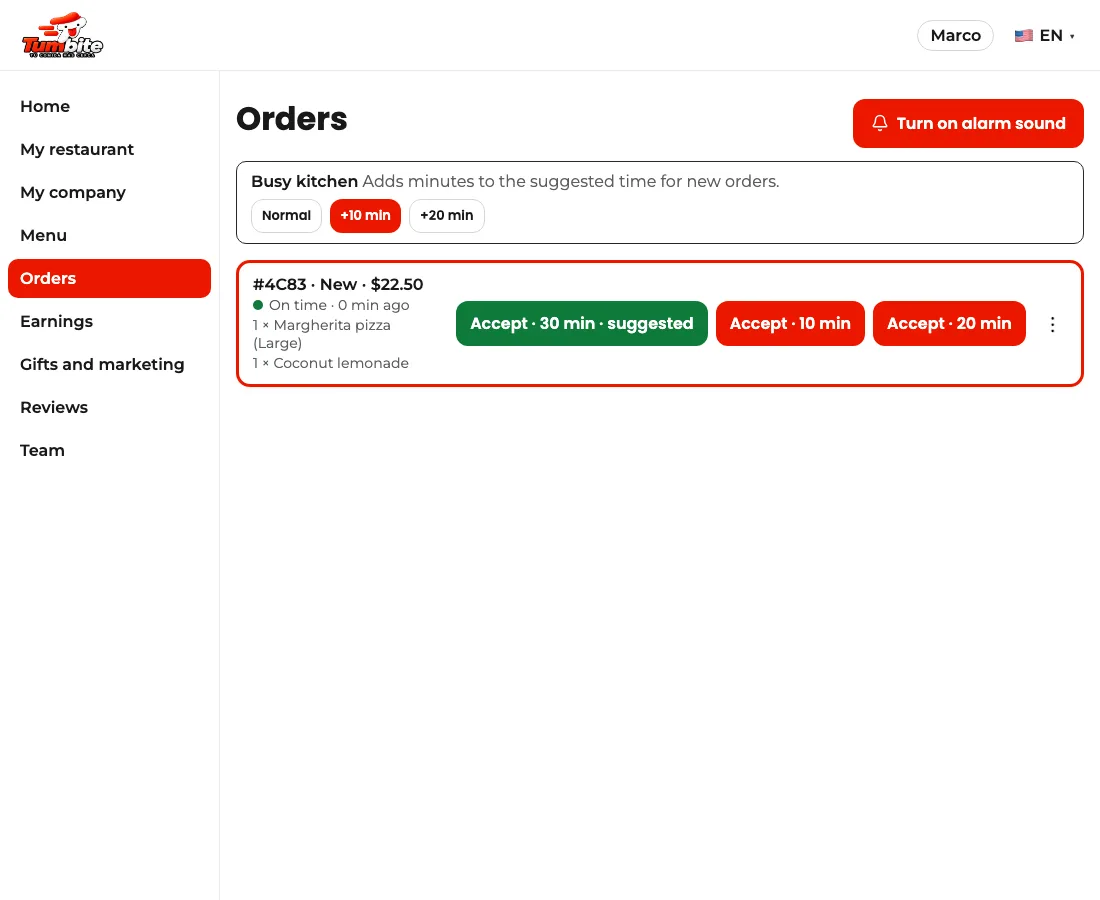
When you accept an order, the first button (in green) is the suggested time: your kitchen’s real average. If you’re slammed, “Busy kitchen” adds 10 or 20 minutes to every new order.
How it works
When an order comes in you choose how soon it will be ready. The first button, in green and marked “suggested,” is what your kitchen really takes: the average of your last 20 orders, from accepted to ready, rounded to 5 minutes. Until you have history, it’s the time set on your profile.
With the time set right, the driver arrives just as the food is ready: no waiting at your counter and no food getting cold.
If the kitchen is slammed (Friday night, an event), tap “Busy kitchen” and choose +10 or +20 minutes: they’re added to the suggested time for new orders until you switch back to “Normal.” You see it in the panel and in the app.
If you need more time after accepting, you still have the “+5 min” button as long as no driver has been assigned.
Steps
- When accepting, tap the green “suggested” button (or pick another time).
- If you’re slammed, tap “Busy kitchen” → “+10 min” or “+20 min.”
- When things calm down, switch back to “Normal.”
This guide answers
- How do I know how many minutes to set when accepting an order?
- What do I do if the kitchen is slammed?