
How to place your first order
Pick a nearby restaurant, build your cart, and pay with a card, Apple Pay, or Google Pay.
Steps
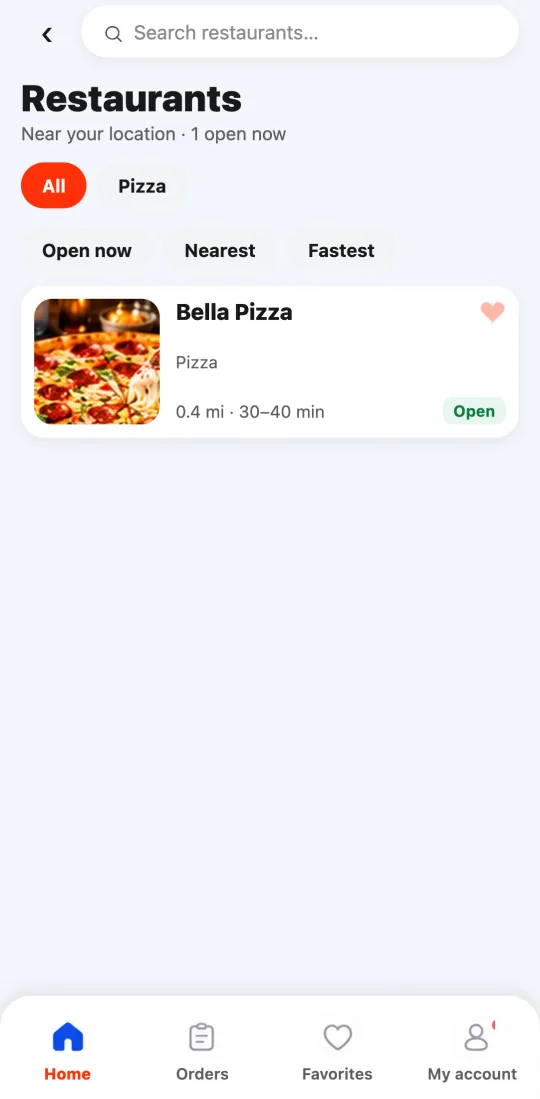
- Open the Tumbite app and allow location: you’ll see the restaurants in your area, closest first.
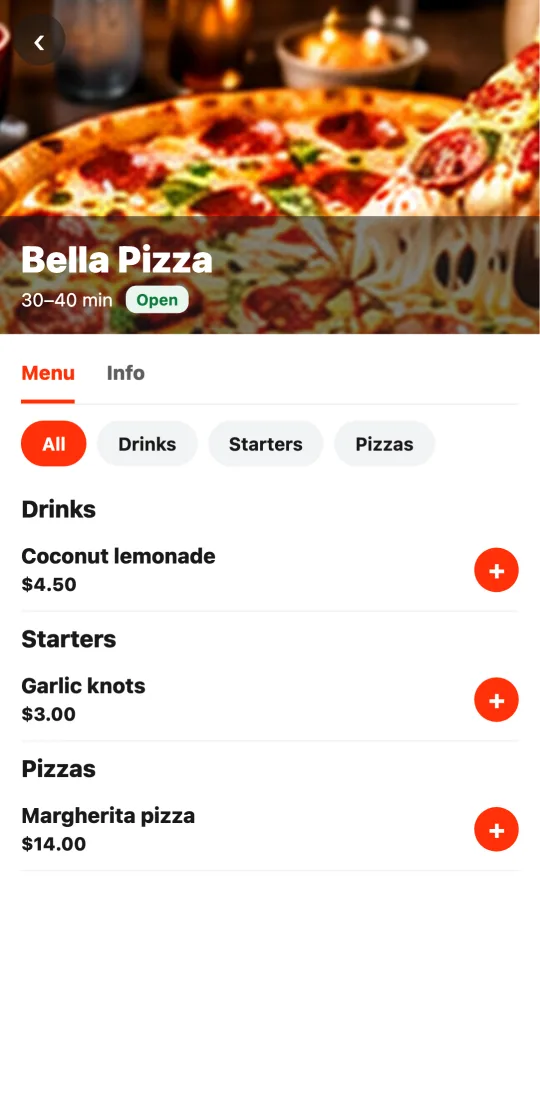
- Tap “Food” and then a restaurant. Tap a dish to see its details: choose the size, the extras, and the quantity, and tap “Add to cart.”
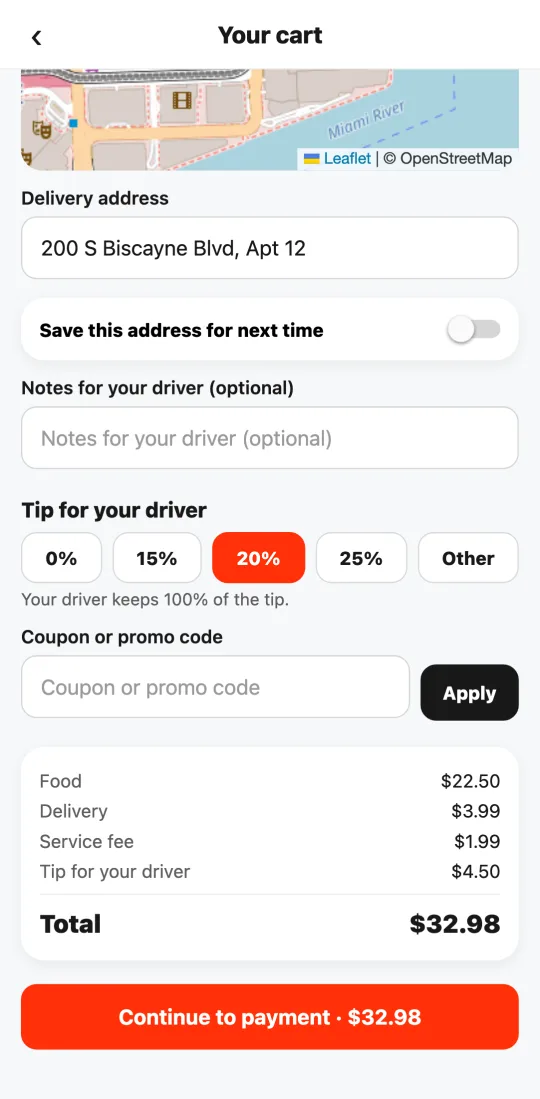
- Go to the cart. Mark your address on the map or type it, and add notes if needed (for example, “ring twice”).
- Choose the tip. It goes entirely to your driver; it never tops up their pay.
- Review the breakdown: food, delivery, service, and tip. What you see is what you pay.
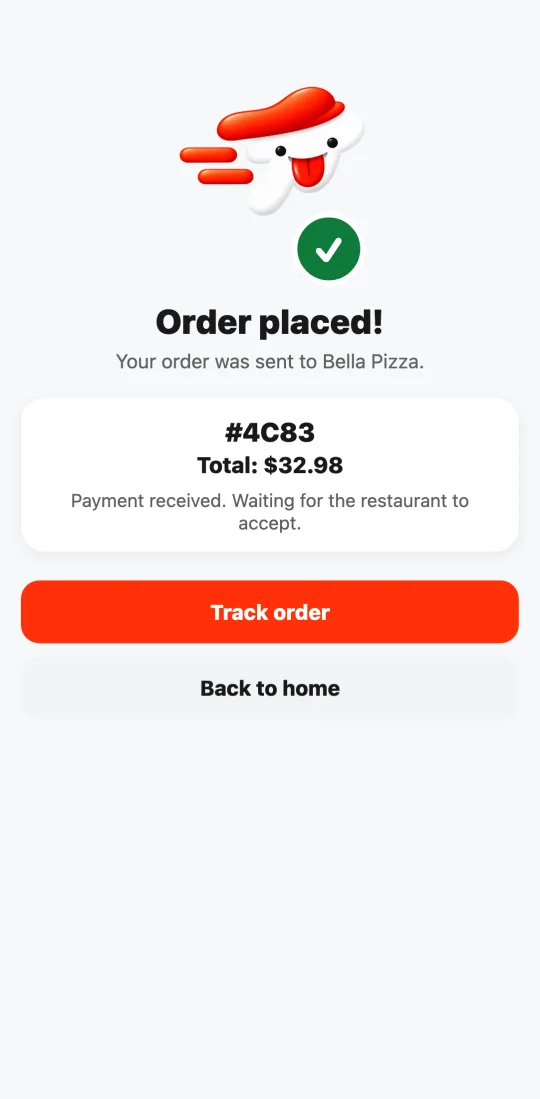
- Tap “Continue to payment.” The card form appears right there, inside the app, secured by Stripe. Once you pay, you see “Order placed!” with the number and the total; tap “Track order” to follow it live.
This guide answers
- How do I order food on Tumbite?
- How do I pay for my order?
- Can I pay with Apple Pay or Google Pay?