
Print kitchen tickets
Print each order for the kitchen, by hand or automatically when you accept it, from the panel or from the Divoox Restaurants app on your phone or tablet, with the receipt printer you already use.
How it works
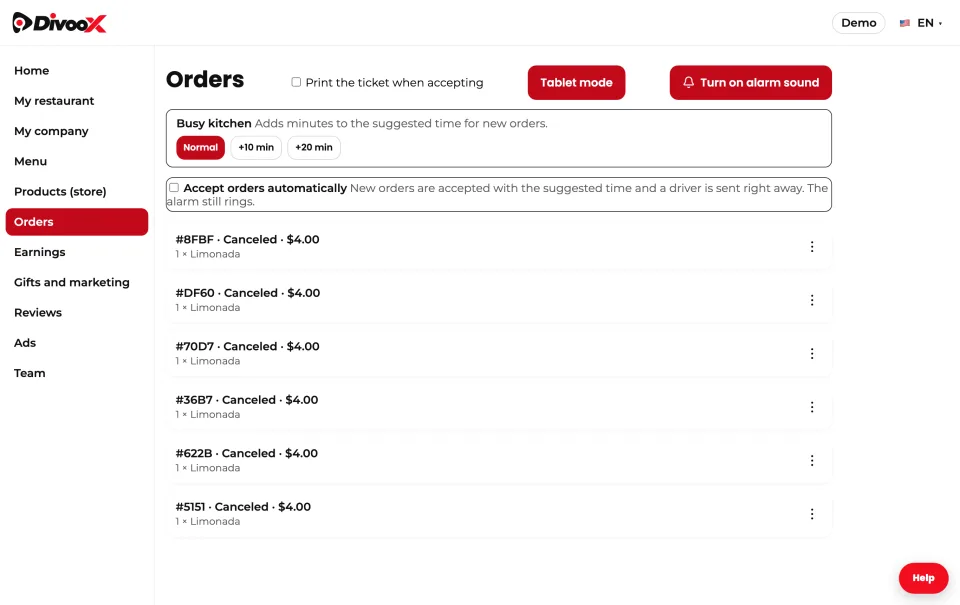
In Orders, every accepted or ready order has a “Print ticket” button.
If you check “Print the ticket when accepting”, printing opens every time you accept an order. The setting is saved on that device.
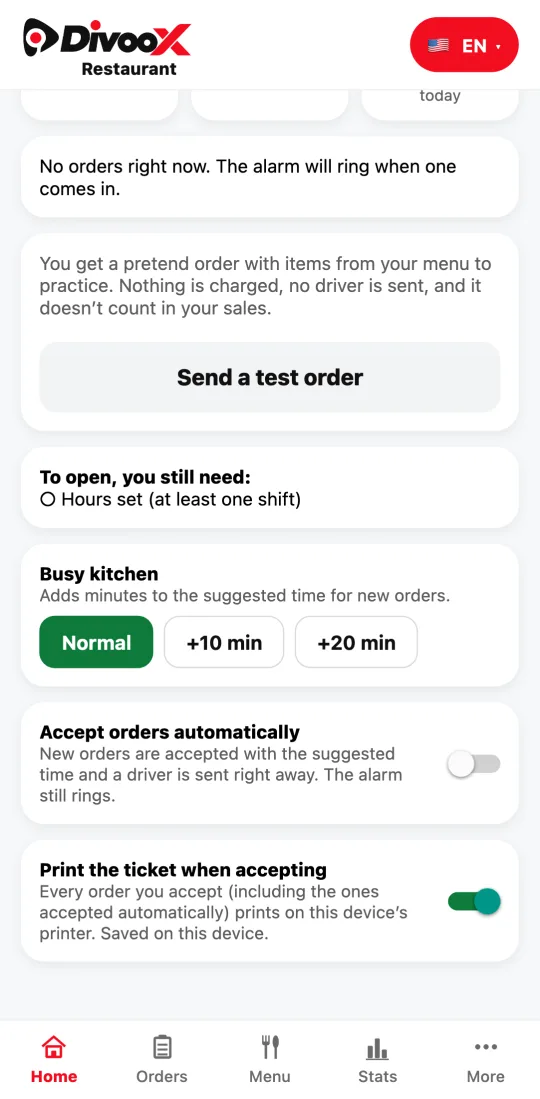
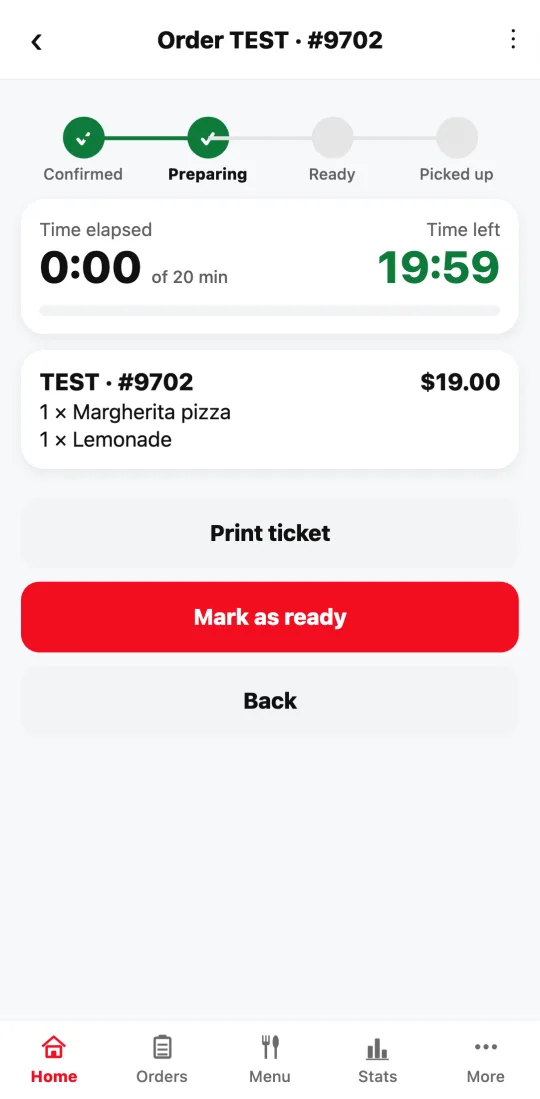
The Divoox Restaurants app (phone or tablet) works the same way: on Home, turn on “Print the ticket when accepting” and, inside any accepted or ready order, tap “Print ticket”. It prints with the device’s own printing: AirPrint on iPhone and iPad, and the print service on Android, with the printer you have paired.
With the switch on, orders accepted automatically print too.
To try it without a customer, tap “Send a test order” on Home and accept it: the ticket prints just like a real order.
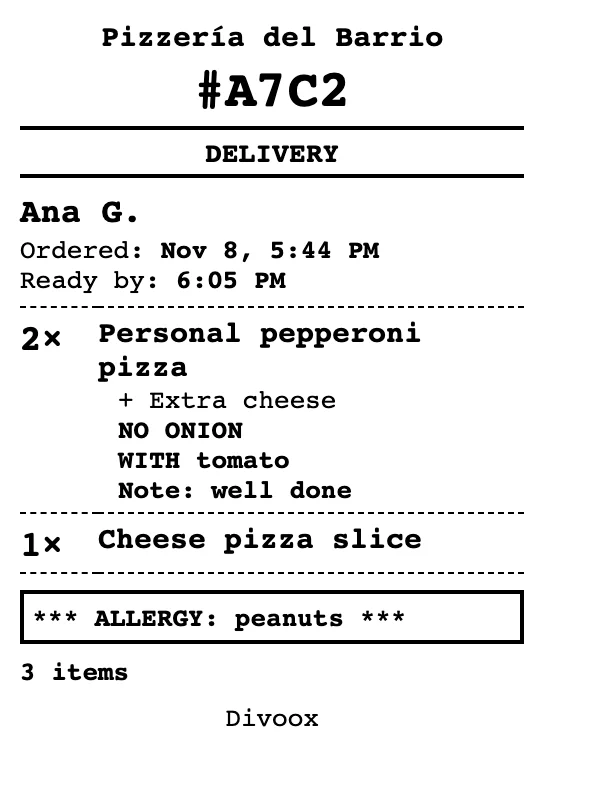
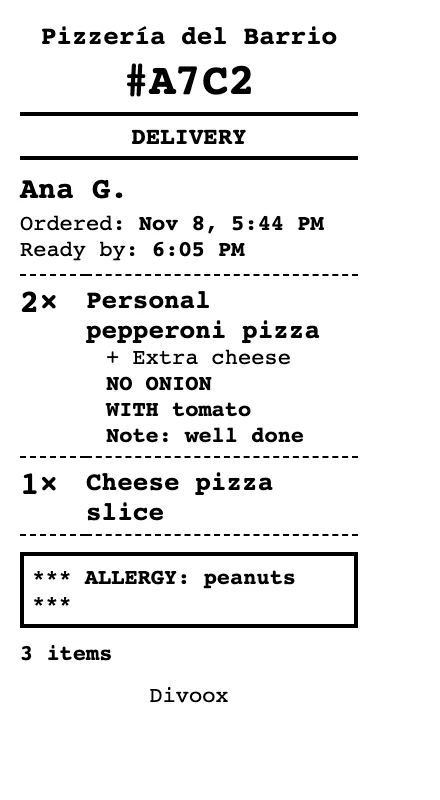
At the top, the ticket shows your restaurant’s name and the order number in large type; then whether it’s delivery, pickup or a test order, and whether it’s scheduled; the customer’s short name (first name and initial, so the driver finds the right bag); the time of the order and the time it should be ready.
Each item prints with its quantity in large type and, below it, one line per selected option. Anything the customer asked to leave out prints in capitals and bold (“NO ONION”), so nobody in the kitchen misses it. The item note and what to do if a product is out also print below. At the end come allergies in a box and the total number of items.
It doesn’t show the customer’s address, the delivery instructions or money.
Choose your paper width above your orders, in “Paper width”: 80 mm (most kitchen printers) or 58 mm (small printers). The text adjusts to each width and your choice is saved for your restaurant on that computer.
If you use Chrome or Edge on a computer, tap “Connect printer (USB)” with the receipt printer plugged in, or “Connect by serial port or Bluetooth” if it’s paired that way. Pick your printer in the browser window. You’ll see “Printer connected” and a “Print test” button to check that it prints well.
With the printer connected, tickets print directly, without the print window, including “Print the ticket when accepting”. When you open the panel again, the printer reconnects on its own.
If your browser can’t connect the printer, or the printer doesn’t respond, the ticket prints through the browser’s regular print window at the width you chose. No ticket is lost.
Steps
- Open Orders in the panel, or Home in the Divoox Restaurants app.
- In the panel, choose your paper width (80 or 58 mm) and, in Chrome or Edge, tap “Connect printer (USB)” and pick your printer.
- Tap “Print test” to check that it prints well.
- Turn on “Print the ticket when accepting” or tap “Print ticket” on an accepted order.
- If you didn’t connect the printer, choose it in the device’s print window.
This guide answers
- How do I print orders for the kitchen?
- Can I print when accepting?
- Can I print from the phone or tablet app?
- How do I connect my receipt printer?
- My paper is 58 mm. Does it work?